
The music plan
The running order, songs, do-not-play, printing
The music plan
An event's Music Plan tab is the page the DJ works from on the night: the running order, a song for every moment, and what not to play.
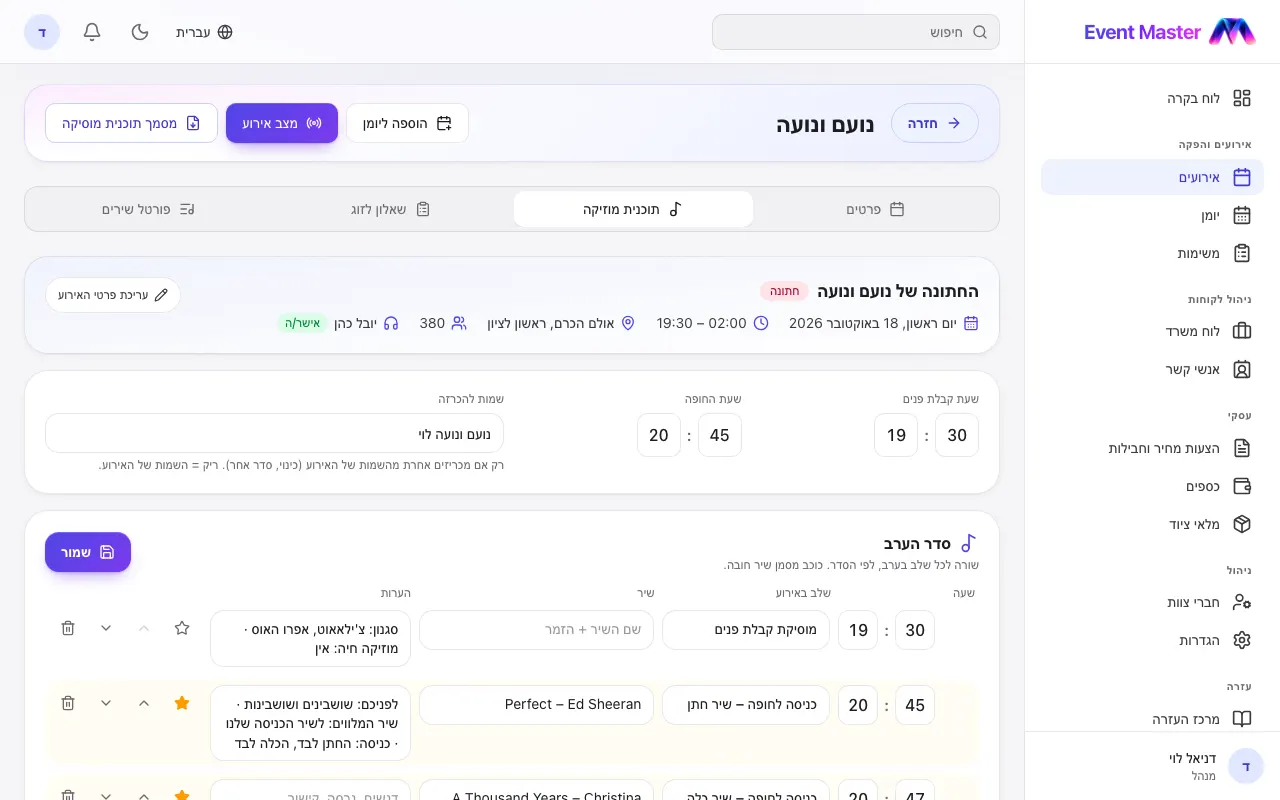
What is in the plan
- Event details - the title, date, hours, place and guests are shown read-only, with a link to edit them on the details tab.
- The evening - a row for each stage (reception, ceremony entrance, glass break, first dance, party...), with a time, a song (song name + artist), notes, and a star for a must-play song. You can add stages, and drag them into order.
- Ceremony Time and Reception Time - at a wedding.
- Names to announce - only if the names announced are different from the event's names.
- Do Not Play List - songs or artists that are not played, even if someone asks.
- General Notes.
Click Save. The button says "Saved" for a moment.
From the questionnaire to the plan
Once the couple has filled in the questionnaire, the Couple questionnaire tab has "Move to the music plan" - it fills in the evening, the Do Not Play List and the notes from their answers.
Printing and PDF
From the plan's document page you can print or save a PDF - just the sheet itself, without the menus.
DJs hear about changes
Every change to the plan - from the editor, from changing the place on the details tab, or from moving the questionnaire into the plan - sends the DJs booked on the event a notification that says what changed: the name of the stage ("First dance"), the Do Not Play List, the times, the place and so on. Whoever saved does not get a notification about their own change, and several saves in a row are merged into one notification.
Tip: Everyone chooses whether to get these as push notifications - in Settings → Notifications → "Music plan changed".
Didn't find an answer?
Open a request - with a screenshot - and our team will get back to you.