
Writing to us: a bug, a request, a question
The ? button, the screenshot and the answers
Writing to us: a bug, a feature request or a question
Every screen has a round ? button in the corner (on a phone - above the bottom bar). Tapping it opens three options:
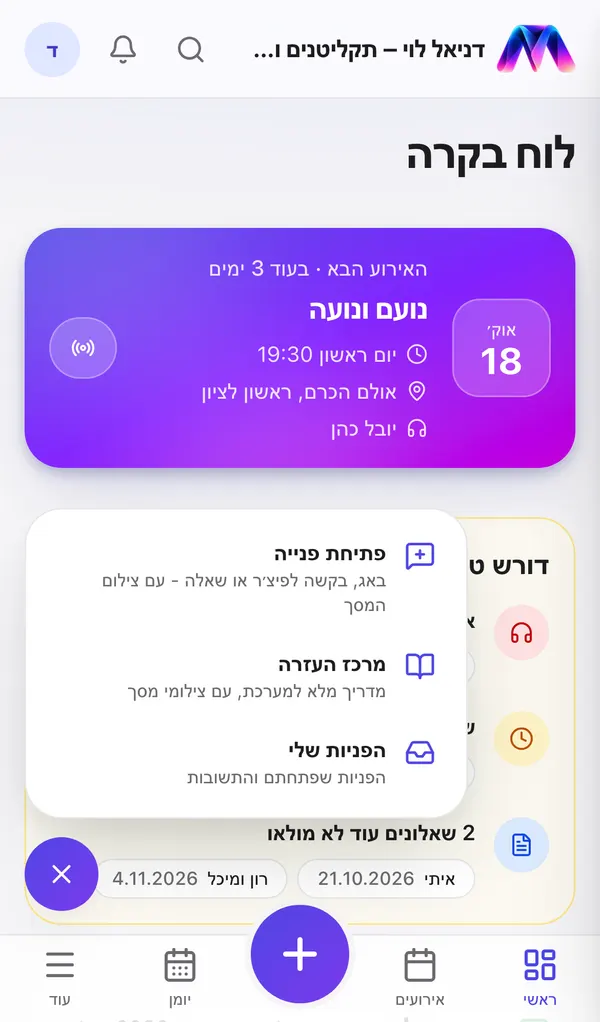
- Open a request - a bug, a feature request, a question or something else.
- Help center - this guide, with What's new at the top: every update to the system.
- My requests - all your requests and the answers. A red dot on the ? means there is a new answer.
Opening a request
The moment you tap, the system takes a picture of the screen - exactly what you saw - and attaches it to the request.
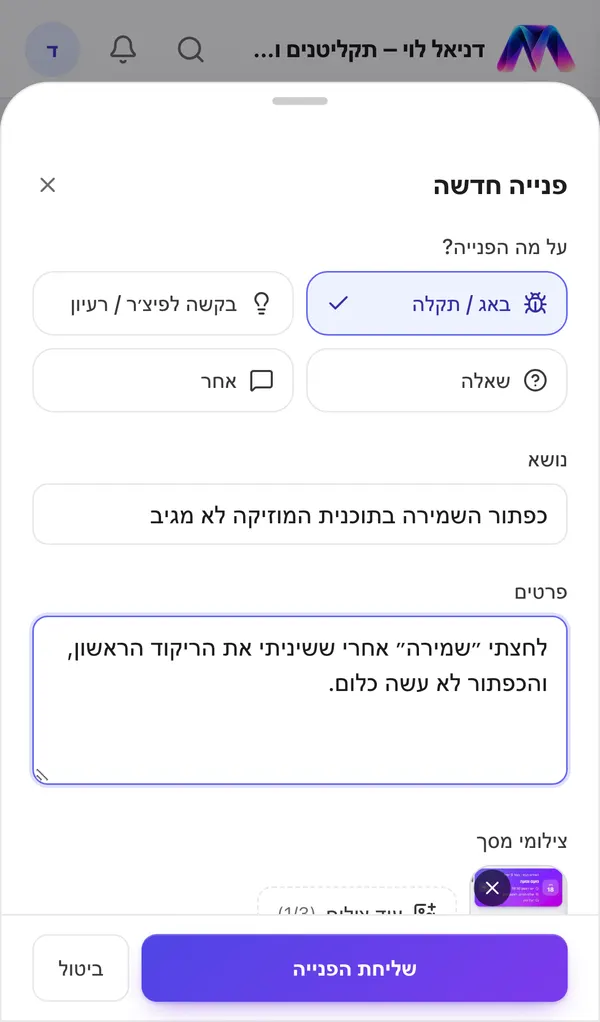
- Choose a type: Bug / something broken, Feature request / idea, Question or Other.
- A short subject and the details. For a bug: what you did, what happened, and what you expected to happen. For a feature request: what you would like the system to do, and why.
- The screenshot is already attached - you can remove it or add up to three screenshots of your own.
- Tap Send the request.
The screen you were on and your device are sent along with the request - so it is easy for us to understand and fix.
What happens next
Our team gets the request straight away, and answers. The answer comes to My requests and by e-mail too (you can turn the e-mail off in the notification settings). You can keep writing in the same request, attach screenshots, and mark it "Solved" when everything is fine.
Didn't find an answer?
Open a request - with a screenshot - and our team will get back to you.