
Notifications, the bell and the weekly summary
What reaches you, by push or e-mail
The bell
The bell at the top of the screen shows what happened: a questionnaire filled in, a booking, a DJ's answer, reminders. The red number is what you have not seen yet - and opening the bell clears it on all your devices. Your own actions are not counted.
My notifications
In Settings → Notifications → "My notifications" you will find every notification the system sends, with a Push switch and an E-mail switch for each one. It is a personal setting - everyone on the team decides for themselves, even people with no access to the rest of the settings.
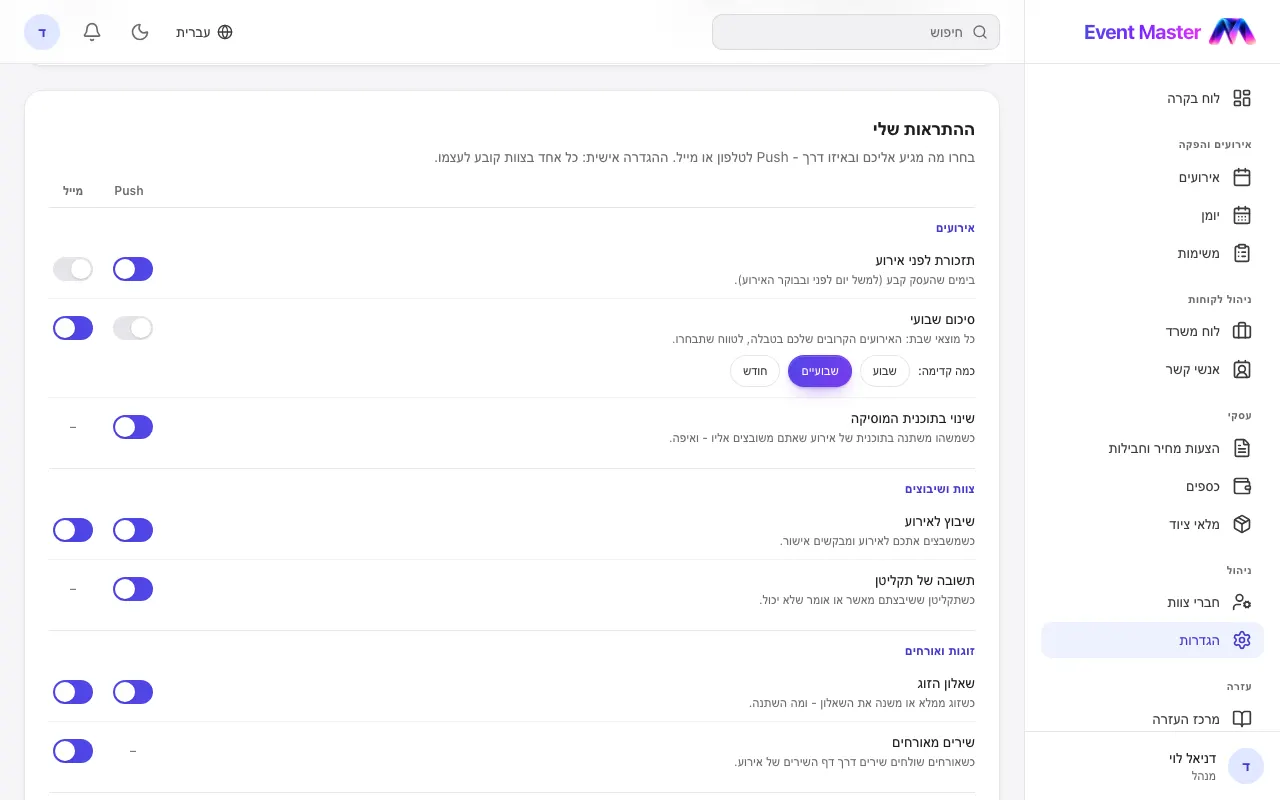
- Events - a reminder before an event, the weekly summary, a change in the music plan.
- Team and bookings - being booked for an event, a DJ's answer.
- Couples and guests - the couple's questionnaire, songs from guests.
- Tasks - a new task for you, a task reminder.
- From us - support replies, tips.
The weekly summary
Every Saturday night, after Shabbat - a neatly laid-out table of your coming events by e-mail, and/or a short notification. Turn it on with its switch and choose How far ahead: a week, two weeks or a month. It stays off until you turn it on.
When you are reminded about an event
Whoever manages the settings picks the days in When to remind before an event (a month, a week, two days, a day before, on the day itself, or another number). Each person chooses for themselves whether to get the reminders as a push or by e-mail.
My devices
On the same screen - the list of phones and browsers that get notifications, with Send a test for each one and a way to remove it. In a browser, turn notifications on with the "Turn on notifications in this browser" button.
My calendars
Tick the calendars you use (Apple, Google, Outlook). "Add to calendar" on an event will offer only those. You can also connect Google Calendar, and the events will sync by themselves.
Didn't find an answer?
Open a request - with a screenshot - and our team will get back to you.